



Is your ABB robot halted by a frustrating SMB communication fault? This error can bring production to a standstill, often stemming from a few key culprits like a faulty SMB cable or inconsistent memory data.
Don't worry. This comprehensive guide will walk you through the most effective steps to diagnose and resolve ABB robot SMB communication faults, helping you minimize downtime.
The Serial Measurement Board (SMB) is a critical component in your ABB robot. It's responsible for communicating vital data—like motor resolver values and safety information—between the robot arm and its main controller. When this communication link fails, the robot cannot accurately know its position, leading to a fault.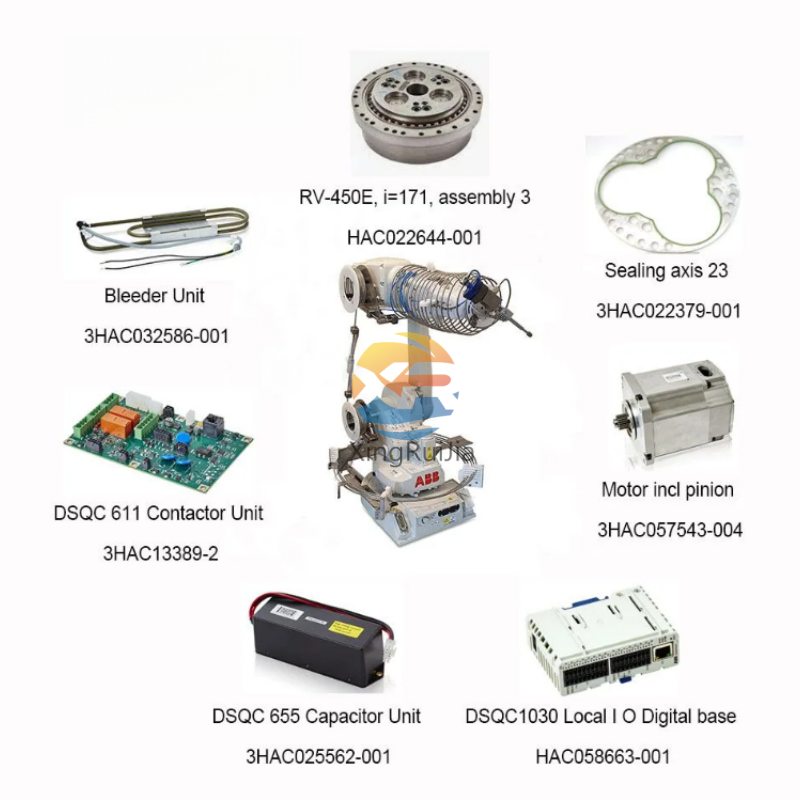
Follow these steps methodically to identify and fix the issue.
Step 1: The Initial Physical Inspection (The Most Common Fixes)
Start with the simplest possibilities first.
Check the SMB Cables: Visually inspect the SMB cable along its entire length for any signs of cuts, crushing, or wear. Ensure the connectors are not oxidized, bent, or loose.
Verify Cable Connections: Trace the SMB cable connections. Pay close attention to the connection at the robot controller (often labeled X2) and the connection point on the robot arm itself. Ensure they are securely seated and locked.
Inspect the SMB Board Connections: Open the SMB board compartment (refer to your robot's manual for location) and check that all internal connectors and pins are firmly in place with no signs of damage.
Step 2: Check Status Indicators and Power
Observe the Indicator Lights: Look at the status LEDs on the Axis Computer module inside the control cabinet. Specific LED patterns (e.g., flashing red) can provide immediate clues about the nature of the fault. Consult the hardware manual for your specific module to decode the lights.
Replace the SMB Battery: A weak or dead SMB battery can cause memory corruption and communication loss. If the battery hasn't been replaced within its recommended lifespan (typically every 2-3 years), replace it as a preventative measure. Warning: Always perform this replacement with power on to prevent memory loss.
Step 3: Addressing Software and Data Issues
If the physical components check out, the problem may lie in the data.
Clear SMB Memory: Inconsistent memory data is a common cause. To resolve this:
On the FlexPendant, go to Calibration.
Select SMB Memory.
Navigate to the Advanced menu.
Here, you can choose to clear either the Robot Control Module Service Memory or the SMB Memory. Select the appropriate option based on the fault details. Note: This may require re-calibrating the robot's absolute accuracy.
If you have worked through all the steps above and the SMB communication fault persists, the issue could be more complex, such as a damaged SMB board, a problem with the main computer, or a deeper system-level corruption.
At this point, it's time to contact a professional. , XRJ-ABB Robotics Support sales5@xrjdcs.com has the specialized diagnostic tools and certified expertise to efficiently diagnose and repair complex ABB robot faults, getting your operation back to peak performance with minimal delay.